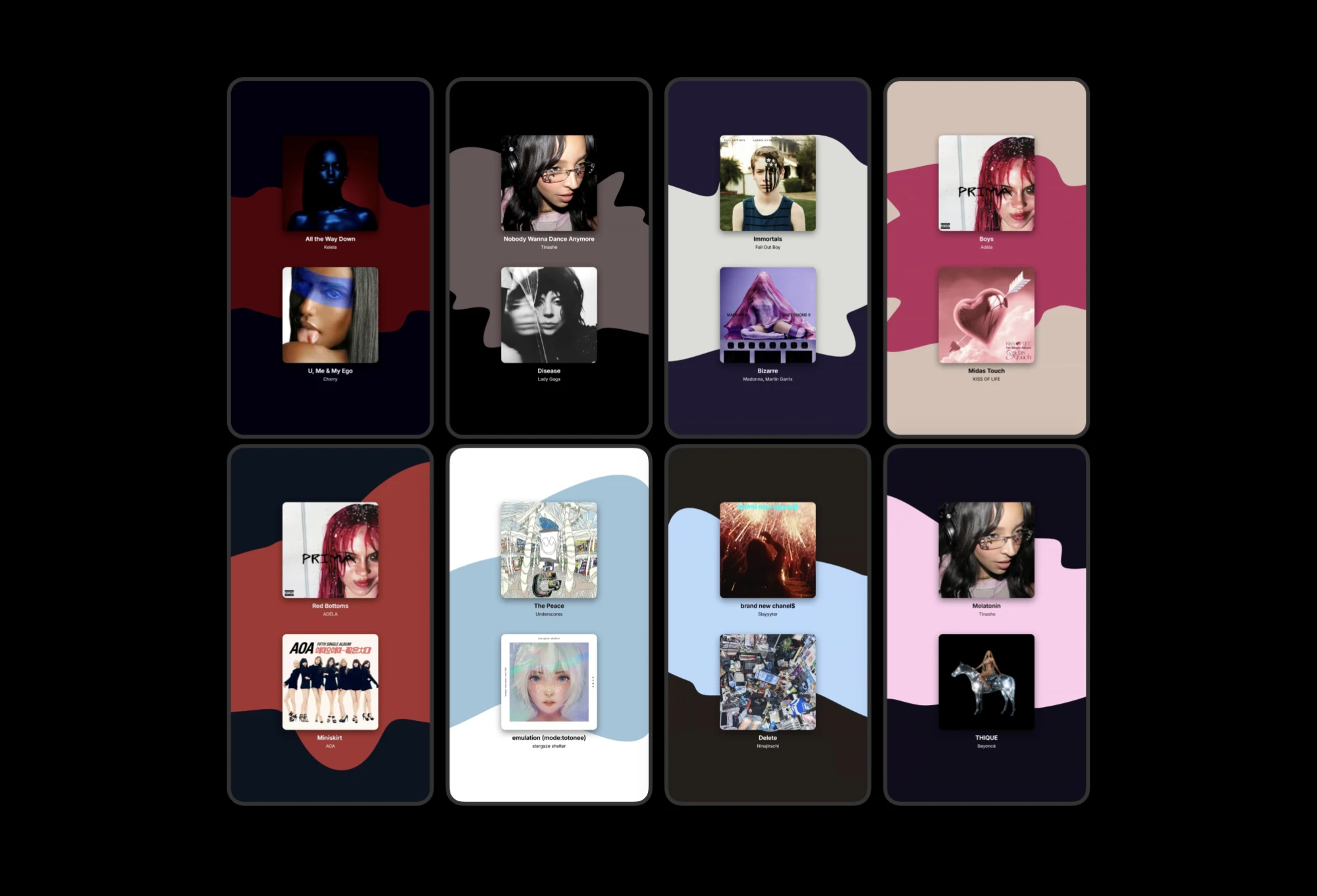
M4SHED: A production tool for turning two songs into a finished mashup video with a custom, audio-reactive visualizer.
I wanted every mashup to have its own visual identity, but hand-building a custom visualizer for each one wasn’t sustainable.
Built a step-by-step tool with a reusable, audio-reactive visualizer.
A repeatable pipeline that turns audio and song metadata into a finished vertical video, about 70% faster than building it from CapCut templates.
A reusable visual system for mashup visuals
I often make mashups by combining two songs into one track, and I wanted each one to have its own visual identity with a custom music-responsive visualizer for social media posts.
Creating a new visualizer for every post would turn each mashup into another production project. I wanted to build the system once and reuse it across every mashup.
Why not use an existing tool?
I looked at tools like CapCut, but their audio visualizers were primarily decorative rather than truly driven by the track. There also wasn’t a template built around my specific mashup format.
So I built a reusable system myself.
Starting with a hypothesis
Hypothesis: Could I automate the repetitive parts of producing a mashup visual while keeping the creative decisions under my control?
I built the first prototype in Claude Code around the features I already knew I needed: song information and album artwork, visualizer parameters, canvas settings, and export controls.
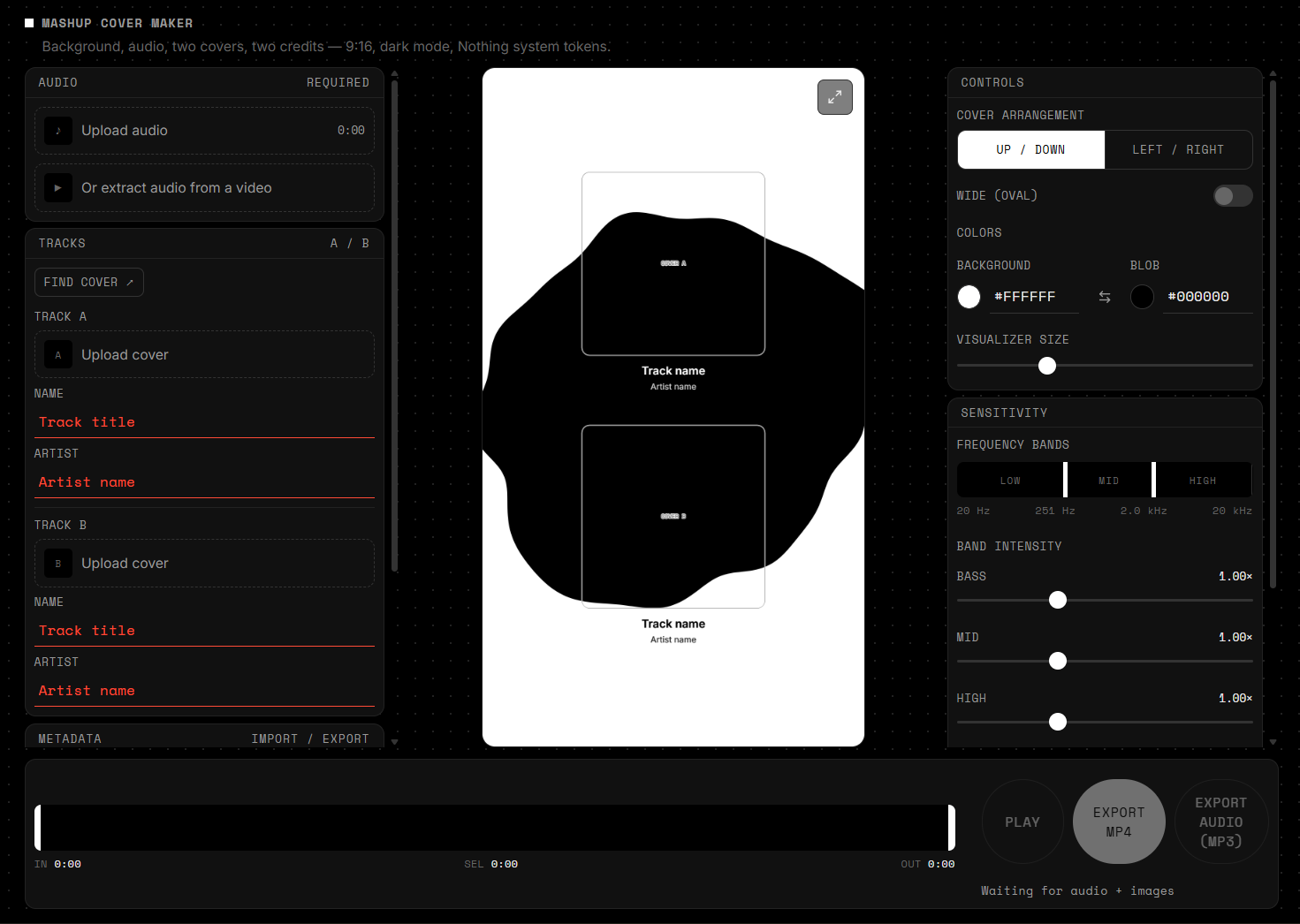
My initial approach put everything on one screen. The vertical canvas matched the final social post, with direct MP4 export built in.
First draft: one screen, no sequence
The first version put every control on one screen at once, assuming that exposing everything up front would feel efficient. Instead, it removed any sense of sequence: nothing signaled what to do first, what depended on what, or what was already done.
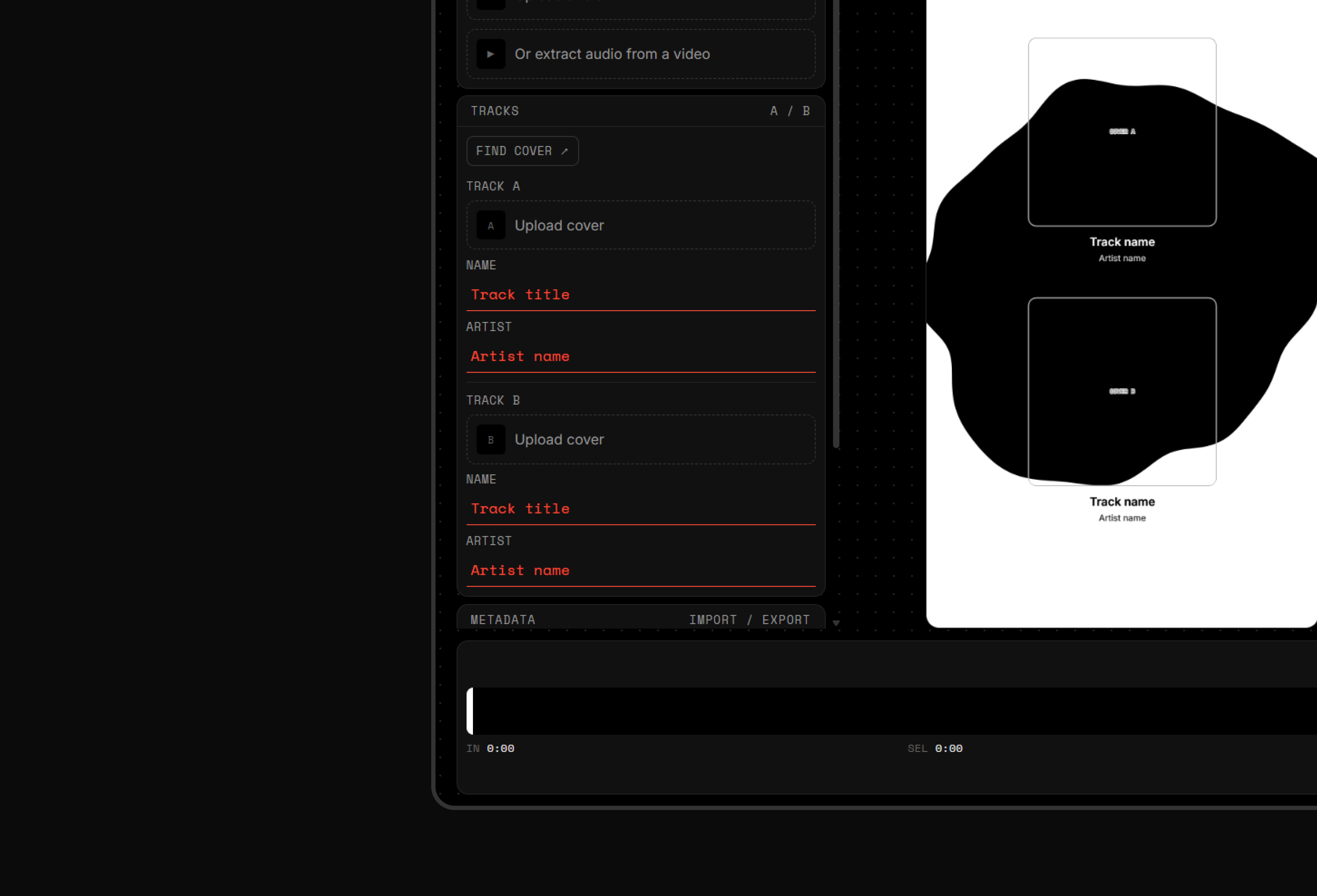
Even with incomplete required fields flagged in red, I still missed them, because a red border only flags a mistake after the fact instead of guiding attention beforehand.
From one screen to a process
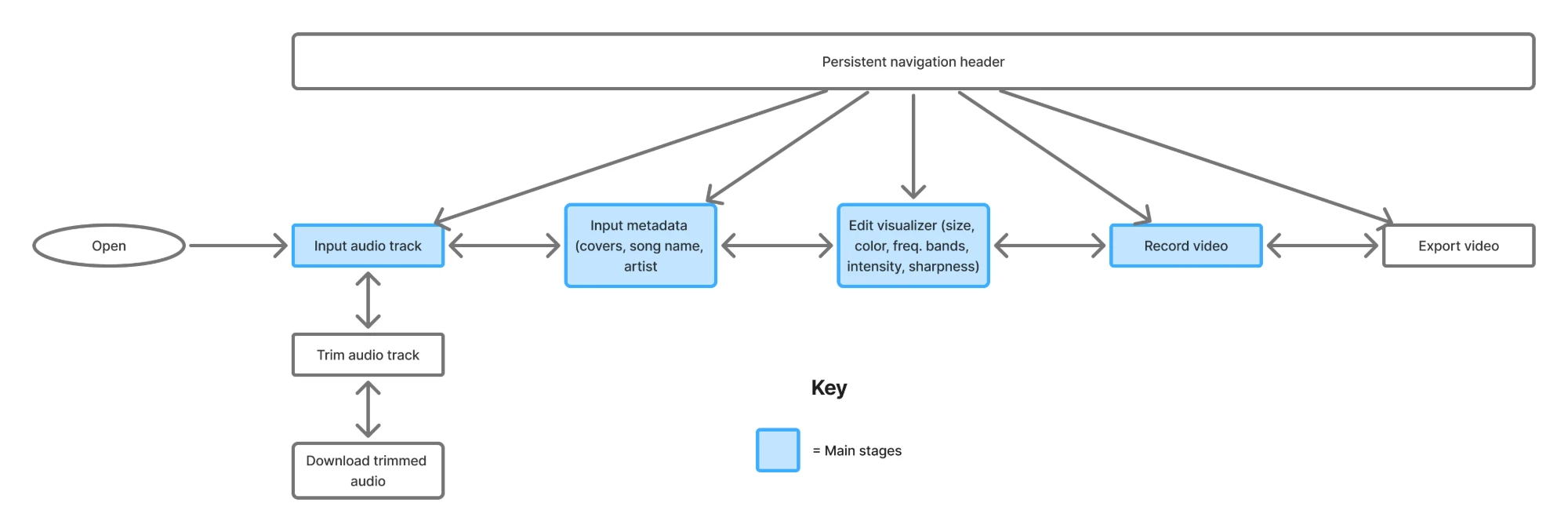
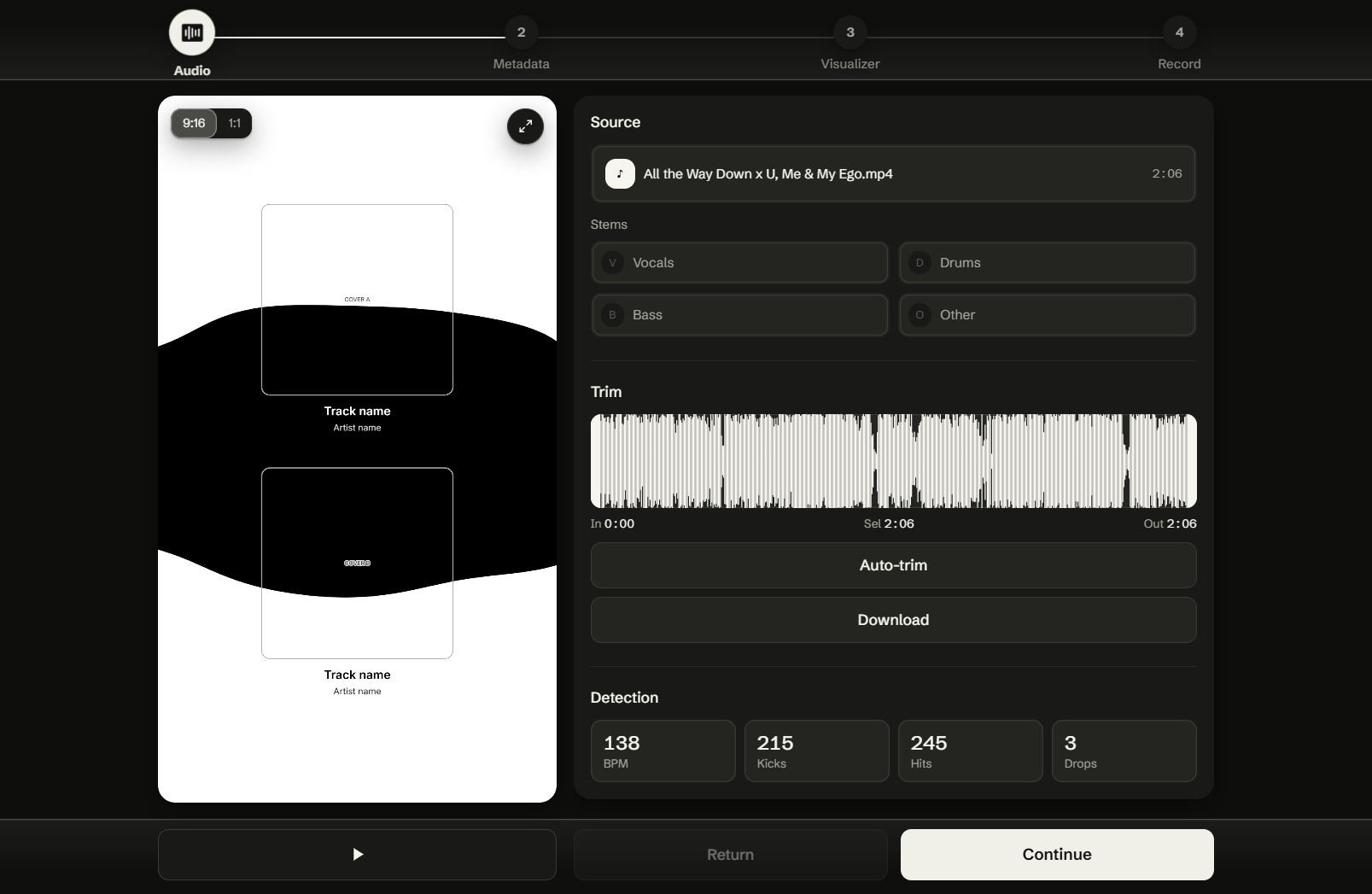
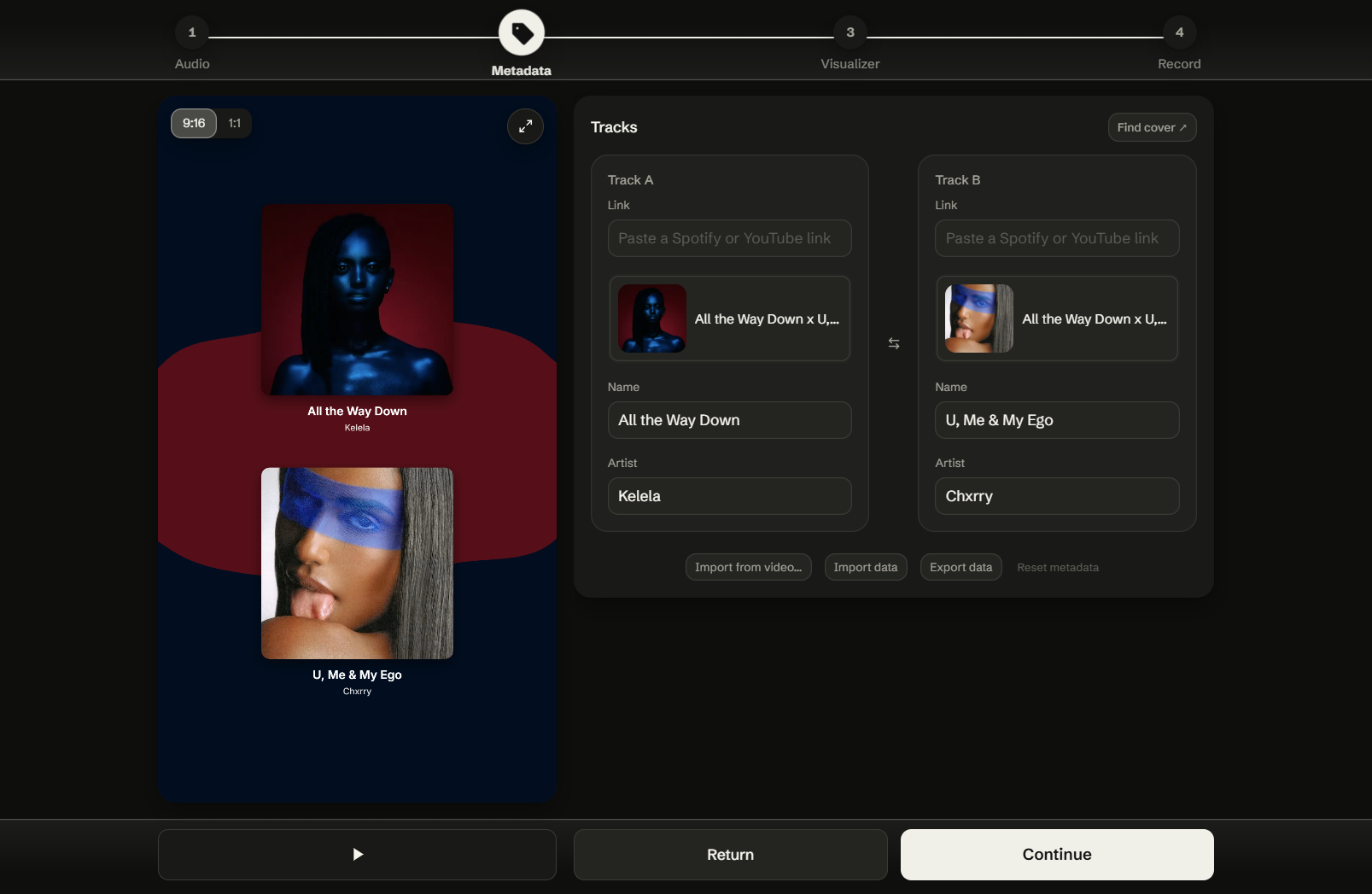
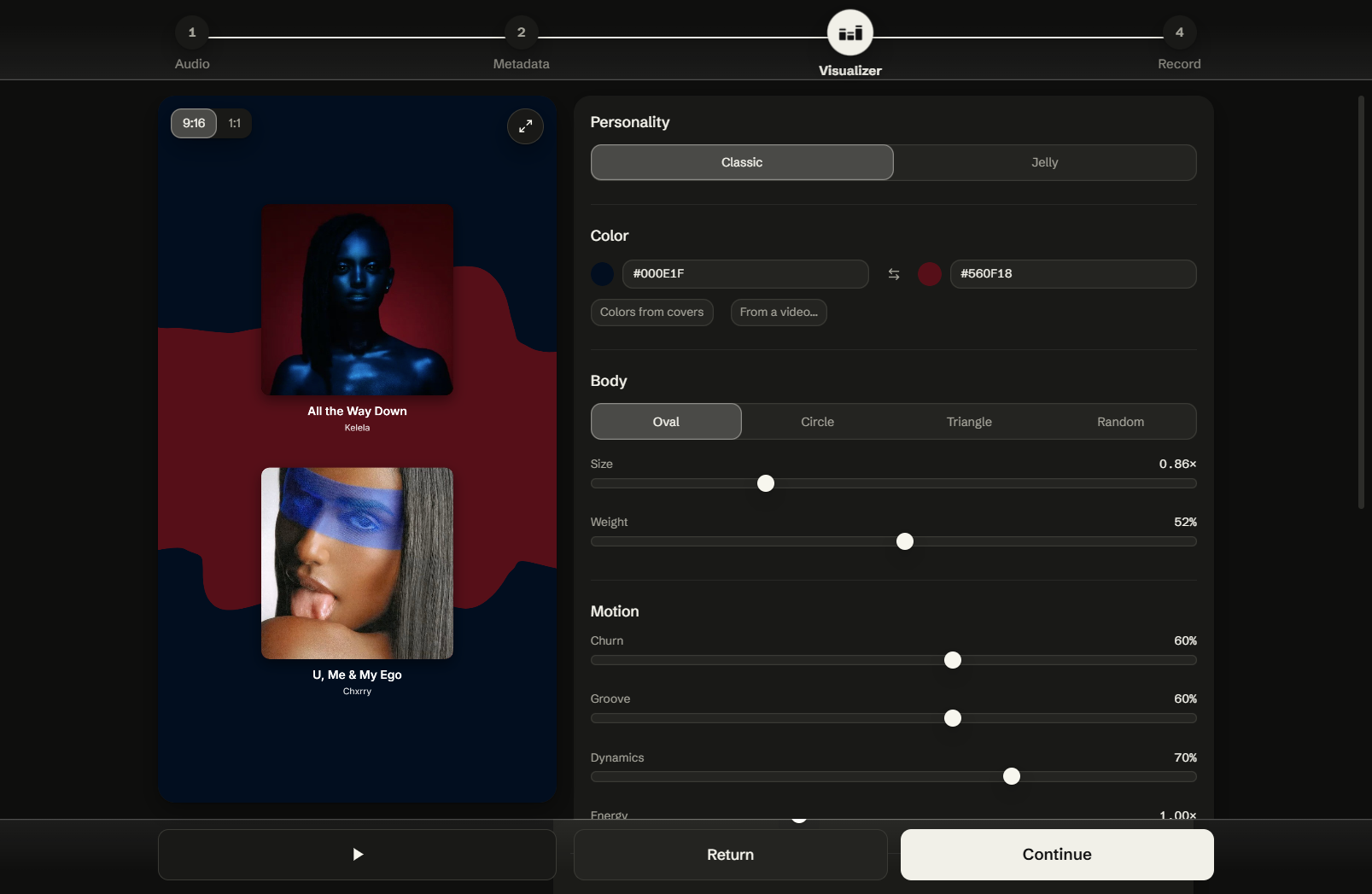
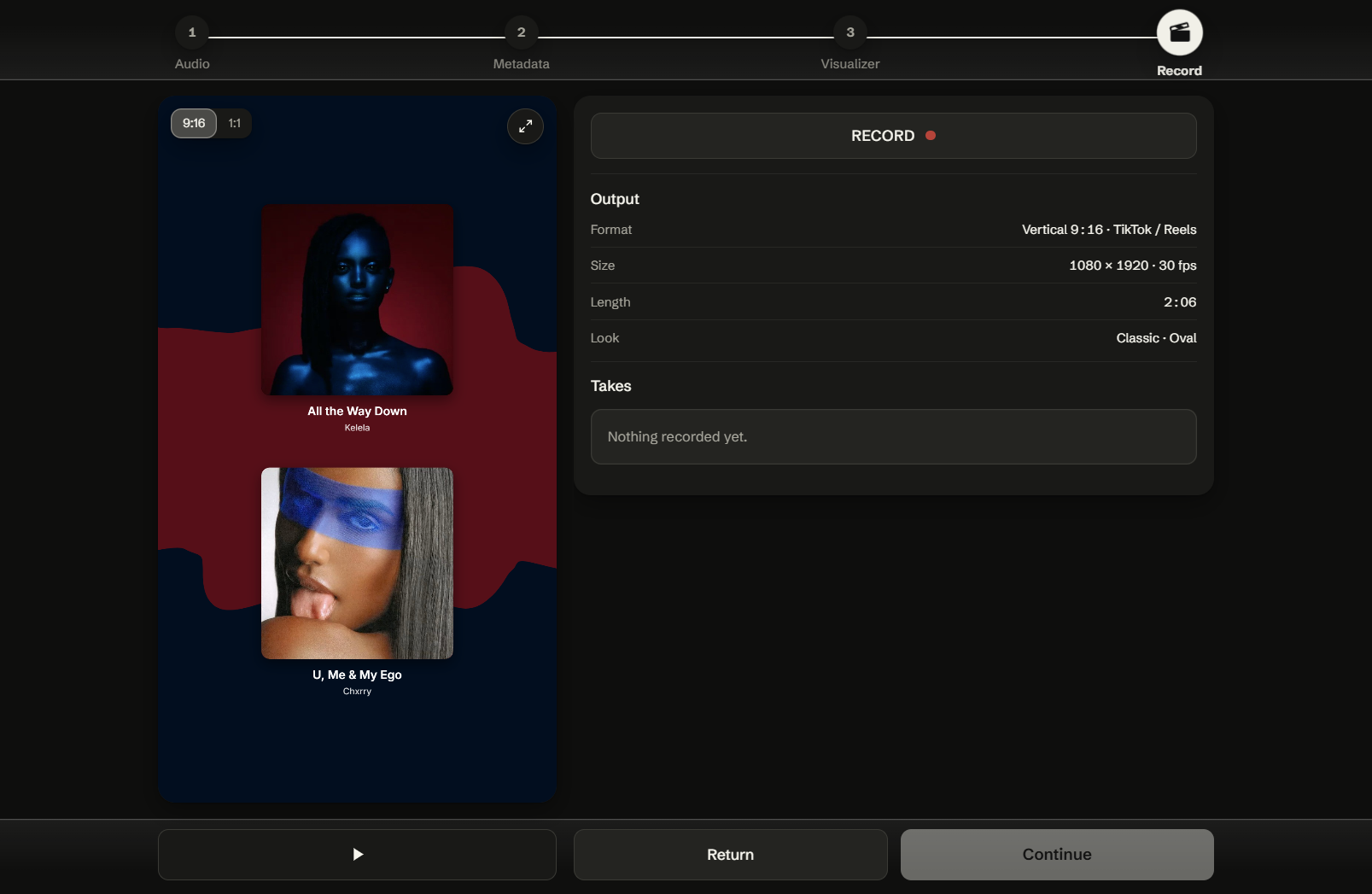
I split the workspace into a sequence of screens, giving each stage its own purpose while letting users move backward or forward through the process. I wasn’t trying to hide functionality. I wanted each part of the workflow to have a clear place.
Each screen uses a minimal visual language instead of a traditional settings dashboard. The visualizer carries the identity, so the workspace stays quiet and keeps the workflow readable, reducing cognitive load without cutting features.
Fixing precision and repetition inside the process
Splitting the workflow into steps fixed the larger structural problem. A self-conducted heuristic evaluation then revealed two smaller issues: manual trimming and repetitive metadata entry.
Imprecise manual trimming
Trimming a song by hand made it easy to cut into the audio itself or leave dead air at the edges.
Automatic silence detection
The tool trims automatically when the audio drops below a set decibel threshold, placing the cut at the silence instead of relying on manual trimming.
Repetitive metadata entry
Song name, artist, and other metadata had to be typed in again every time I came back to the same project.
Copy and paste metadata
Metadata can be copied from one session and pasted into a later one, eliminating repeated entry when returning to a project.
The visualizer is each mashup’s identity
The visualizer is what gives each mashup its own look, so it got the most iteration. I explored everything from simple bars to complex radial transformations, tuning both its appearance and how it responds to the music.
Under the hood, the system runs entirely in the browser: Canvas 2D renders the visualizer, Web Audio API + FFT analysis provides live frequency data, and Canvas output is captured and encoded to MP4 in-browser.
The system is the deliverable
The final tool is a repeatable production system that can be reused and tailored for each mashup.
The music is still created separately. The tool handles the repetitive visual-production work afterward, cutting production time by about 70% compared with building each video by hand from CapCut templates, which still can’t react to the audio.
What I learned
Having every control available at once increased cognitive load. I forgot steps more easily and performed worse than I did once the process was split into a sequence.